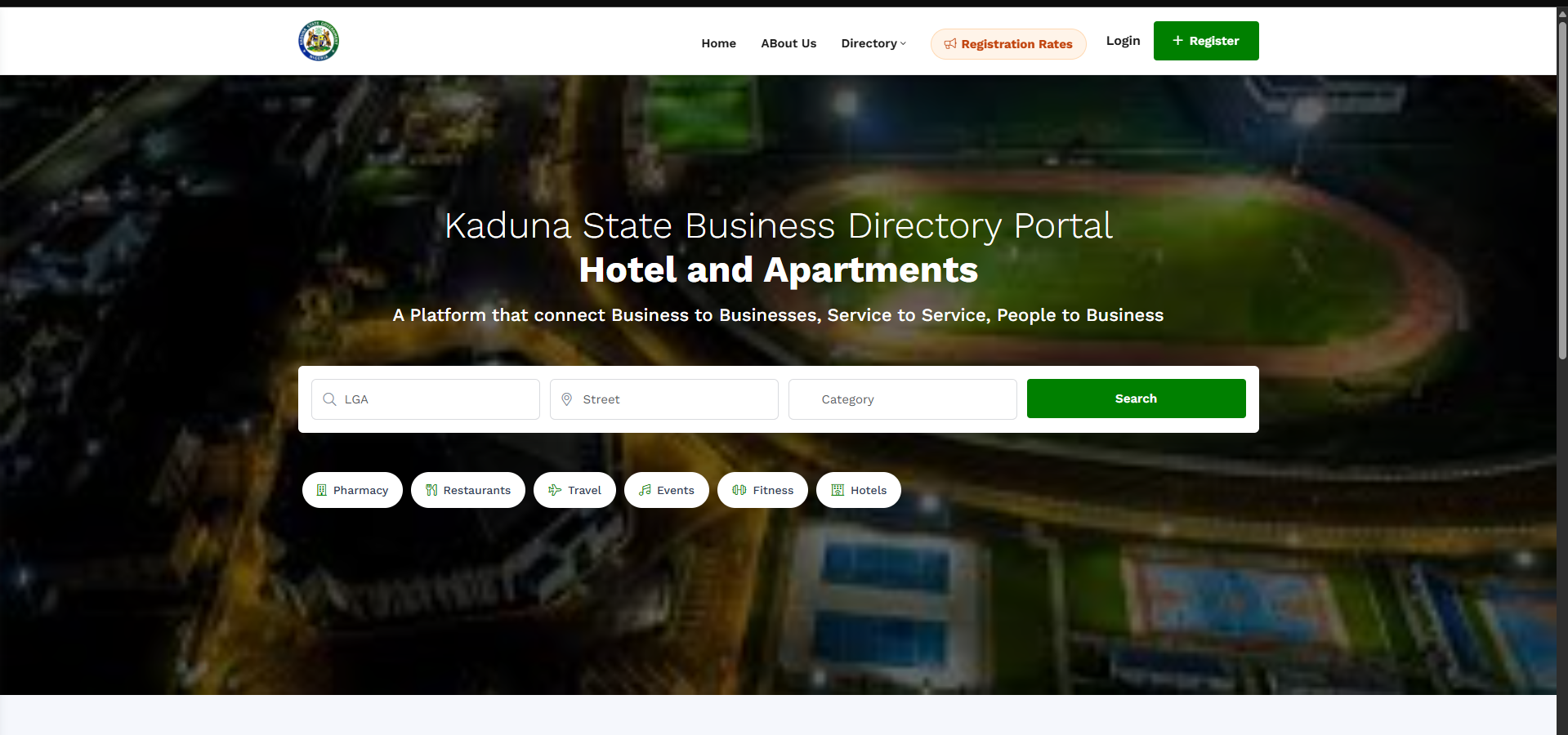
Each card gives you what you need to get in touch.
The photo, category and business name. A green tick marks a verified business.
The address, LGA, phone number and email.
Click the business name to open its full details.
Step 4 of 5
Trust what you see
Businesses appear in the directory only after their registration payment has been confirmed, so every listing belongs to a business that completed registration.
Good to know: Can't find a business you expected? It may not have completed its registration payment yet.
Step 5 of 5
See what registration costs
Curious what businesses pay to register? The Registration Rates page lists the published fee for each business category and location.
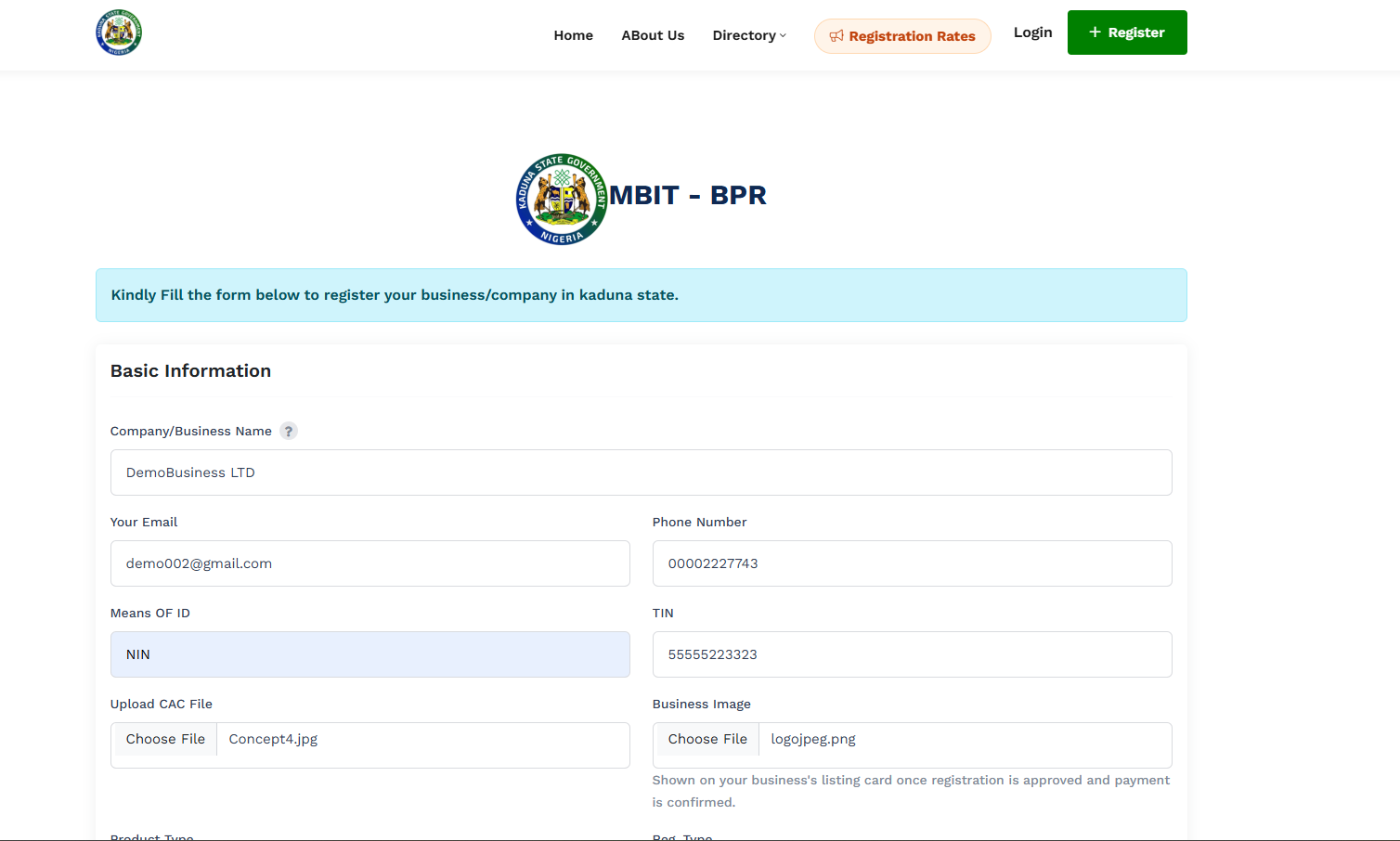
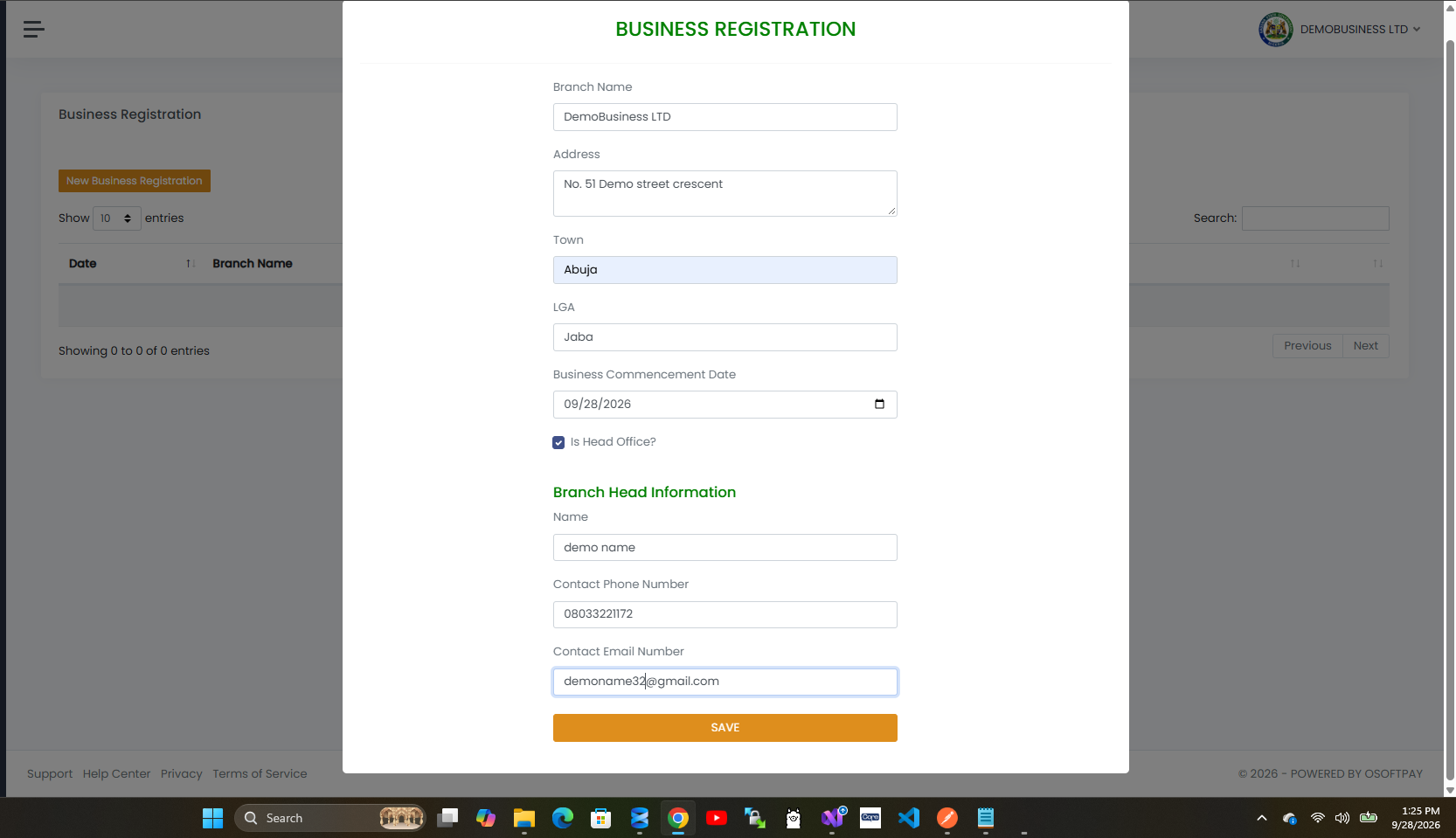
Submitting the form signs you in and takes you straight to your business dashboard. Click New Business Registration and fill in the premises details.
Branch name, address, town and LGA.
The business commencement date, and whether this is your head office.
Branch head information — a contact name, phone number and email. Use an email that isn't already registered to another premises.
Click Save once the form is complete.
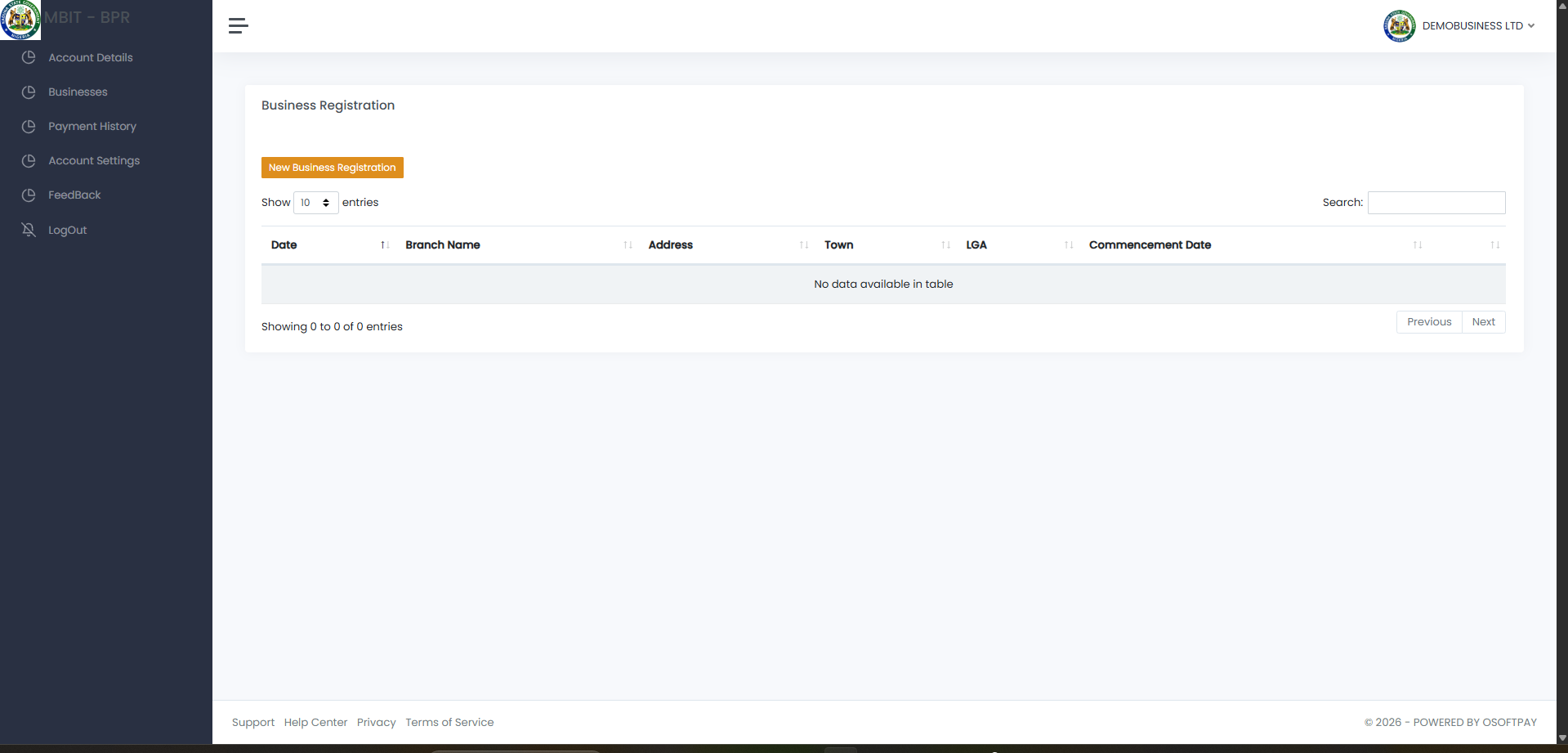
Your business dashboard right after registering. Click New Business Registration to add a premises.Fill in the branch details — name, address, town, LGA and branch head information — then click Save.
Good to know: Your dashboard starts empty — that's normal. It fills in once you save your first business premises.
Step 4 of 7
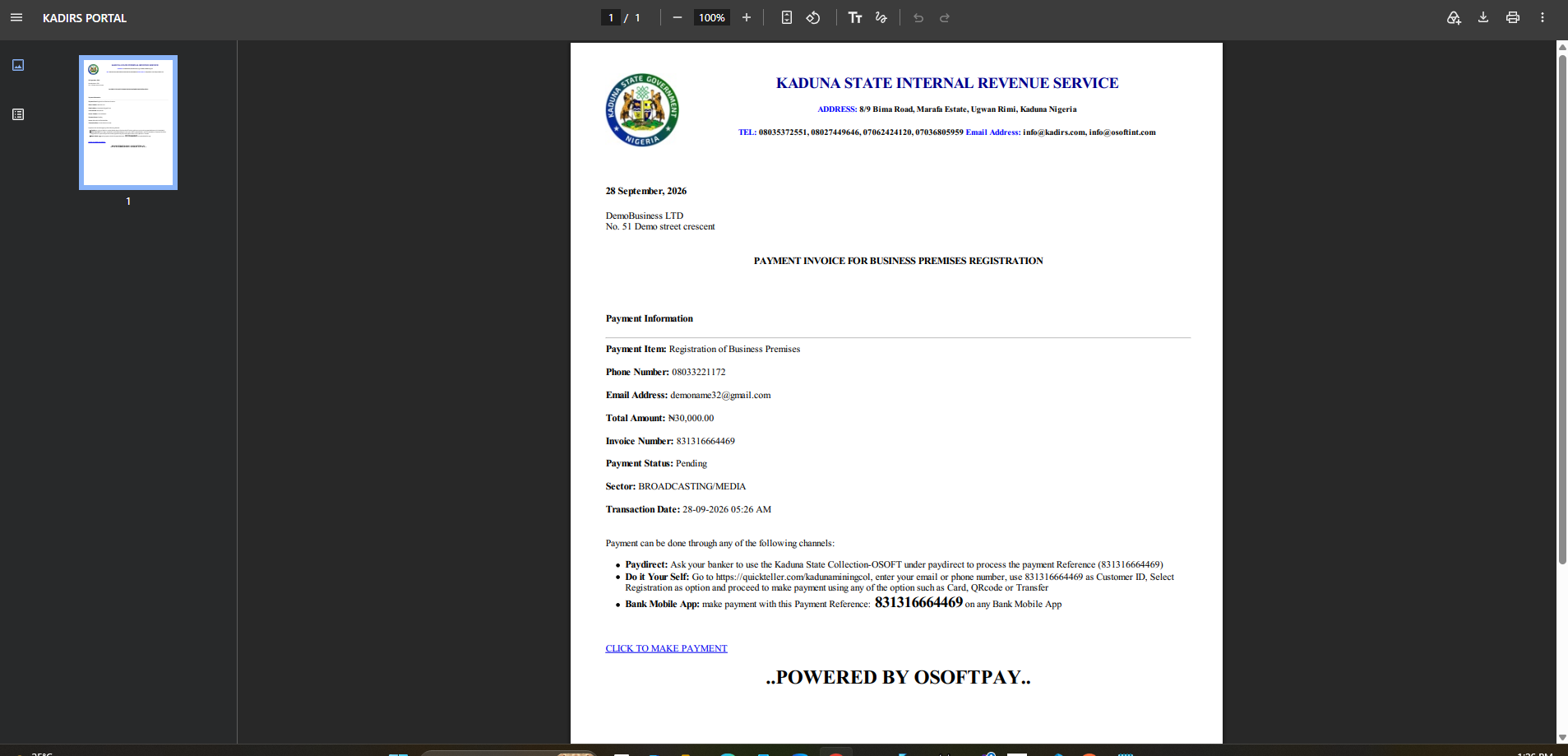
Receive your invoice
As soon as you save your business premises, an invoice is generated automatically.
It shows the amount due and your payment reference (invoice number).
The amount is based on your sector and business type.
Keep the payment reference. You need it for every payment option.
Your invoice is generated automatically — note the payment reference and total amount due.
Step 5 of 7
Make your payment
Pay through whichever channel is easiest for you. All of them use the same payment reference.
Bank branch: ask your banker to use Kaduna State Collection-OSOFT under Paydirect with your reference.
Online: go to quickteller.com/kadunaminingcol, enter your email or phone number, and use the reference as your Customer ID.
Bank mobile app: pay using the payment reference.
Good to know: Payments can take a little while to show. Come back and verify in the next step.
Step 6 of 7
Confirm payment and get listed
Once your payment goes through, verify it from your payment history.
Your business status changes to Active.
Your business appears in the public directory with your photo.
You can download your registration certificate. It carries a QR code anyone can scan to check your registration.
Good to know: Until payment is confirmed, your business is not listed.
Step 7 of 7
Renew every year
Registration lasts one year from your confirmed payment. When it expires, renew to stay compliant.
Open your business page and renew. A new invoice is issued.
Pay it the same way, then verify the payment.
If you miss a year or more, the invoice covers every unpaid year with a period-by-period breakdown. Paying it brings you fully up to date.
Good to know: Renew on time. Each missed year adds to what you owe.